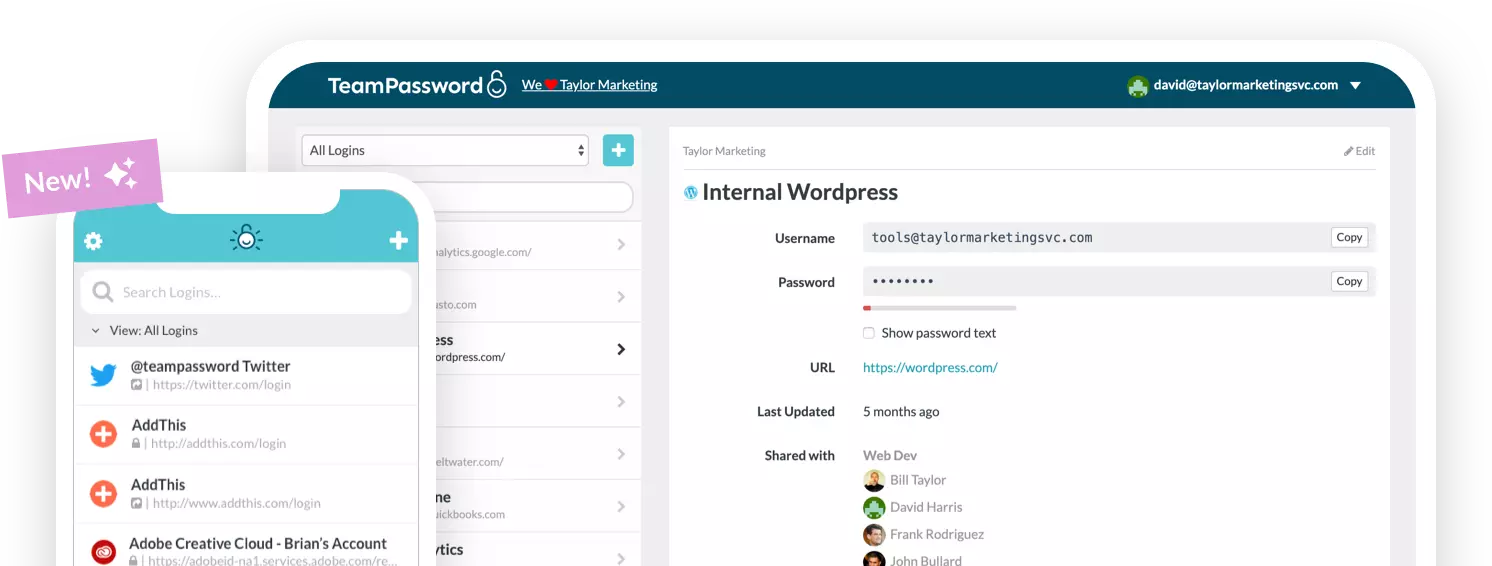
How to Streamline Your Workflow with the TeamPassword Extension

Table of Contents
Managing passwords shouldn’t feel like a second job. If you’re still clicking back and forth between tabs to copy and paste login credentials, there is a much faster way to work.
The TeamPassword browser extension brings your entire vault directly into your workflow. Whether you’re logging into a client portal or sharing a login with a teammate, the extension ensures you never have to leave the page you’re on. In this guide, we’ll show you exactly how to install and master the extension in just a few minutes.
TL;DR: The Quick Start Guide
Don't have time for the full tour? Here is the fast track to getting set up:
- Download: Head to the TeamPassword Chrome Web Store Page.
- Install: Click Add to Chrome and then Add Extension on the popup.
- Pin it: Click the puzzle piece icon in your browser toolbar and click the Pin icon next to TeamPassword.
- Log In: Click the TeamPassword logo in your toolbar and sign in to see your vault.
Step 1: Installation
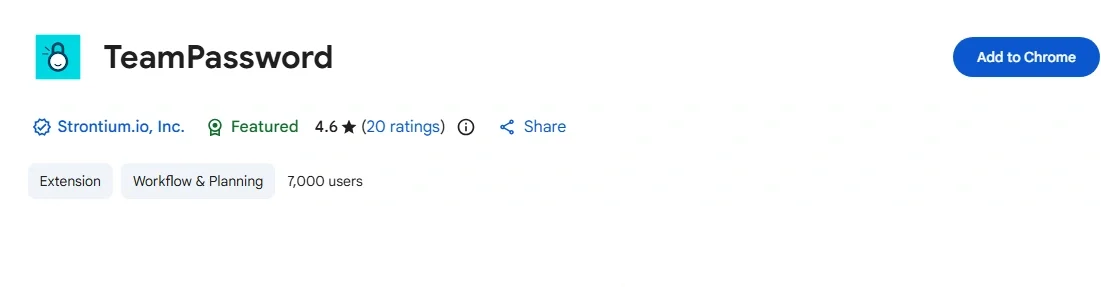
Getting started is simple. Navigate to the Chrome Web Store page for TeamPassword. This version works seamlessly with Chrome, Brave, and Microsoft Edge.
Click the blue Add to Chrome button.
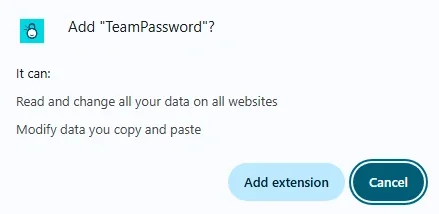
A small window will appear at the top of your browser asking for permission to install the tool. This is a standard security step to allow the extension to help you fill in your logins. Click Add Extension to finalize the process.
Step 2: Keep TeamPassword Within Reach (Pinning)
Once installed, the extension sometimes hides inside your browser's extension menu. To make sure it’s always visible when you need it, you’ll want to pin it to your toolbar.


- Click the Extensions icon (it looks like a grey puzzle piece) in the top right corner of your browser.
- Find TeamPassword in the dropdown list.
- Click the Pin icon so it turns blue.
Now, the TeamPassword logo will stay next to your address bar for easy access.
Step 3: Navigating Your New Dashboard
When you click the TeamPassword icon in your toolbar, your home dashboard opens. Think of this as your mini-vault. You can search for specific logins, browse through your various groups, and if the extension recognizes a URL in your vault that matches the webpage you're currently on, it will bring it to the top.
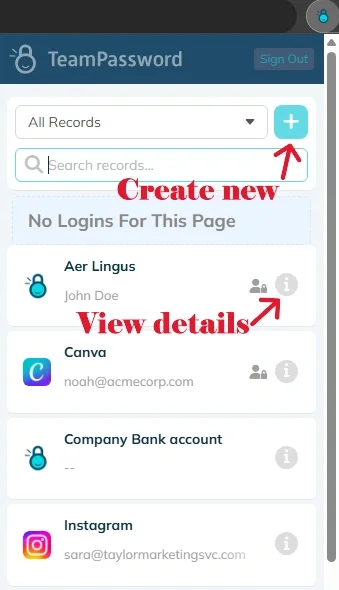
Need to add a new login on the fly? You don’t need to open the full website. Just click the "plus" button inside the extension to create a new record and save credentials instantly.
Step 4: Using Autofill (and When to Manual Fill)
The extension is designed to recognize when you are on a login page. Click the recognized login to autofill.
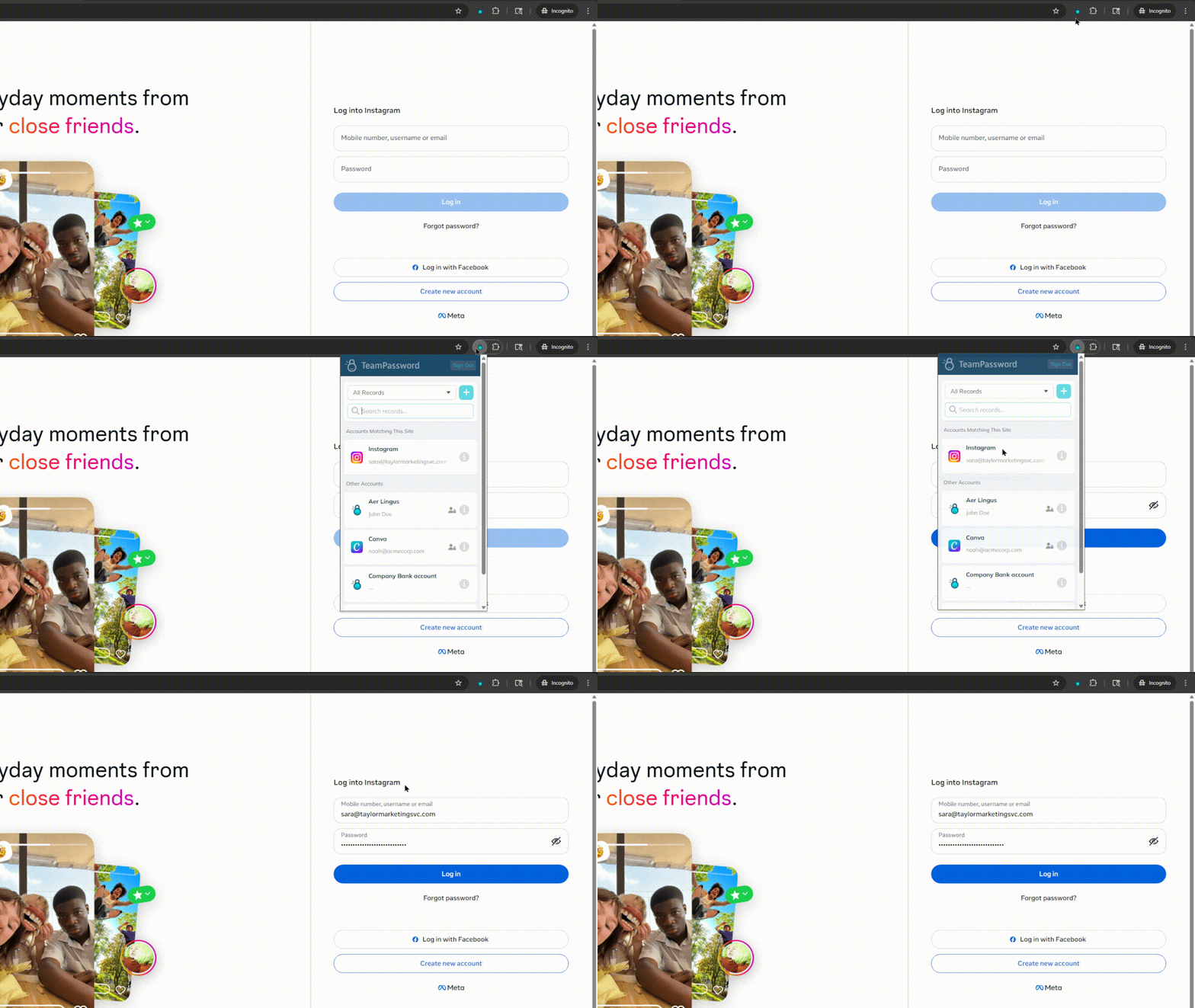
While we strive for 100% accuracy, the internet is built on many different frameworks, meaning autofill only works some of the time. If the autofill icon doesn’t pop up, simply click the View Details icon for the login, and use the copy icons to manually paste your details into the fields.
Step 5: Mastering Two-Factor Authentication (TOTP)
Security is our priority, which is why we’ve built TOTP (Time-based One-Time Password) support directly into the extension. If you have a time-based 2FA set up for a record, you don’t need to grab your phone to check an app.
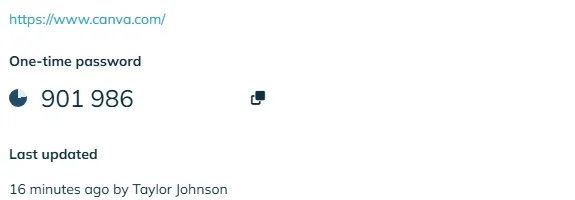
Find the record in your extension, and the 6-digit code will be right there, refreshing every 30 seconds. Click to copy the code and paste it into the site to complete your login.
The TeamPassword extension is the best way to keep your team secure without slowing down your momentum. By spending five minutes setting it up today, you’ll save hours of searching and typing over the coming weeks.
Don't have a TeamPassword account? Sign up for a free trial!